> For the complete documentation index, see [llms.txt](https://docs.affiliaters.in/llms.txt). Markdown versions of documentation pages are available by appending `.md` to page URLs; this page is available as [Markdown](https://docs.affiliaters.in/link-shorteners/bitly.md).
# Bitly
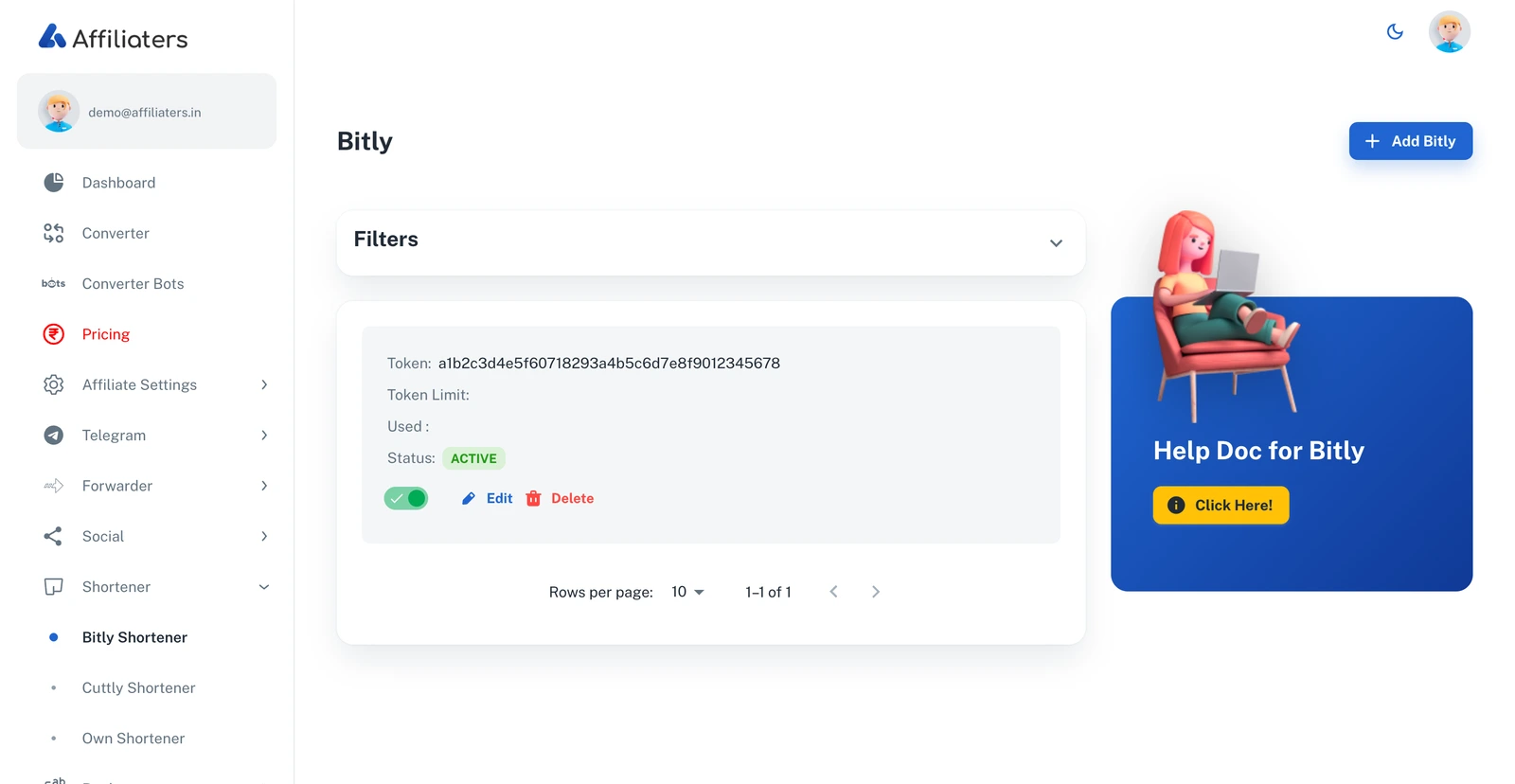
The Bitly page in Affiliaters
## URL
Bitly is a URL-shortening service that turns long links into short, trackable ones. In Affiliaters, Bitly is what powers `amzn.to`-style short links.
{% hint style="info" %}
**Two steps to activate Bitly:** add your token here, **and** select Bitly in [Affiliate Settings > Shorteners](/settings/affiliate-settings/shorteners.md). One without the other does nothing.
{% endhint %}
{% hint style="danger" %}
**We don't provide Bitly tokens or link limits.** Tokens come from **your** Bitly account, and how many links each token can create (10, 1000, …) is decided by your Bitly plan — not by Affiliaters.
{% endhint %}
## Add a Bitly token in Affiliaters
1. Go to **Shortener > Bitly**. Your existing tokens and their remaining limits are listed here.
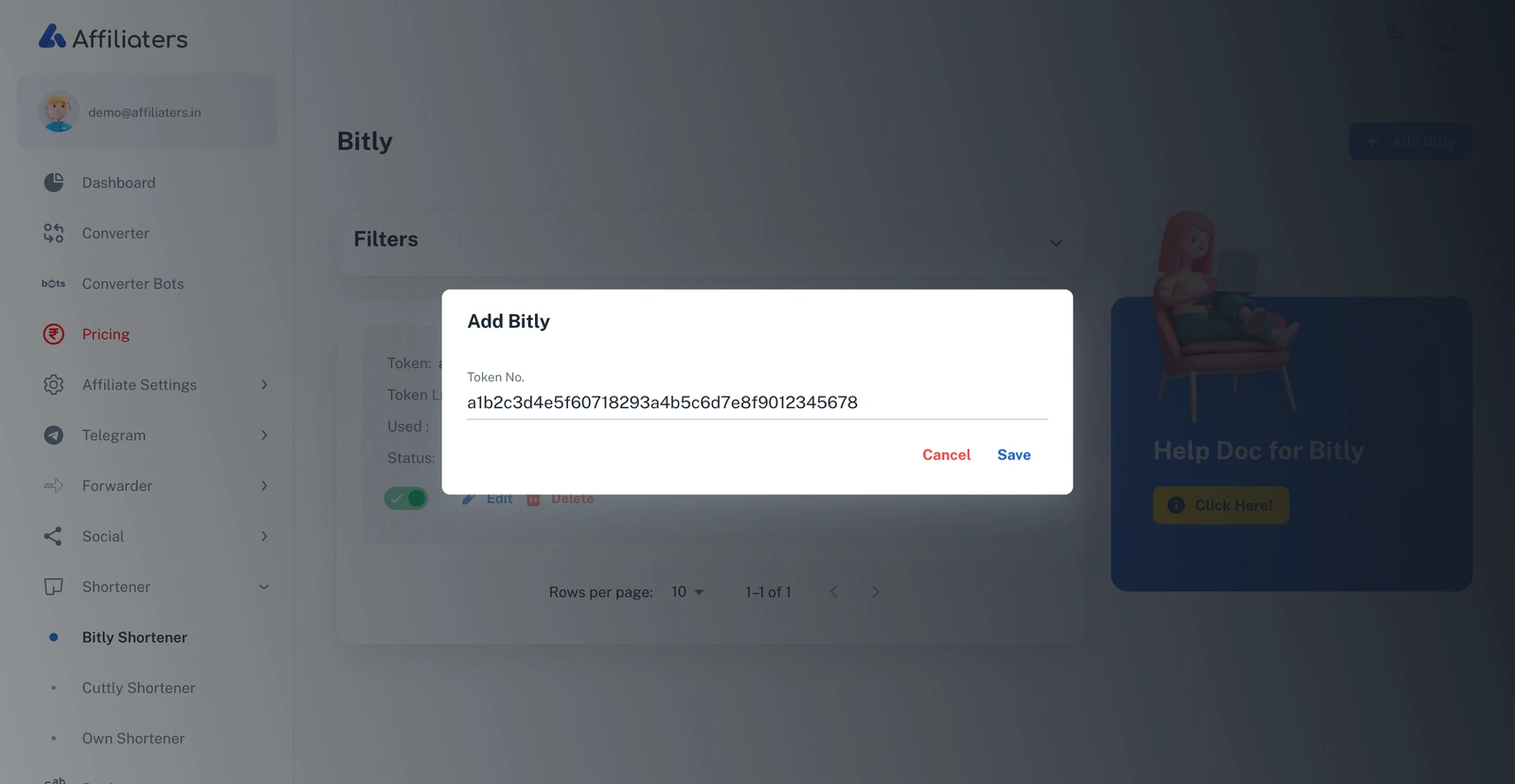
2. Press **Add Bitly** to add a token (you can add multiple, up to your plan's allowance).
Add as many tokens as your plan allows
{% hint style="info" %}
**For `amzn.to` links:** you also need an Amazon tag, **Convert Amazon links with = Default** in [Selections](/settings/affiliate-settings/selections.md), and **Bitly** switched on in [**Short Amazon links with**](/settings/affiliate-settings/shorteners.md). Without an Amazon tag, `amzn.to` is not available.
{% endhint %}
## How to get a Bitly token
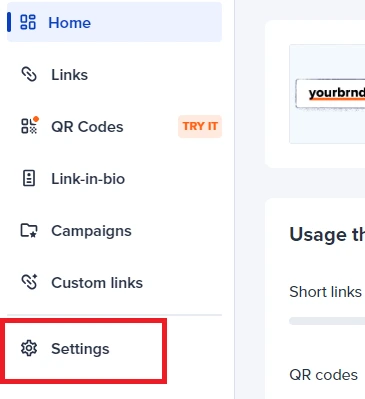
1. Sign up or log in at [https://bitly.com](https://bitly.com/), then open the **Settings** menu.
Open Settings on bitly.com
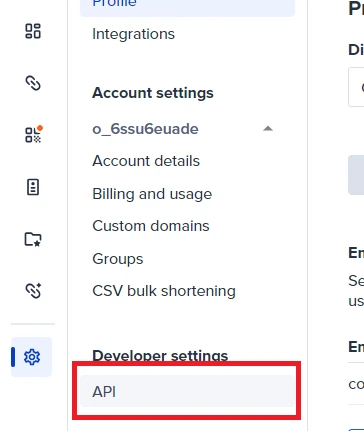
2. Select **API** in Settings.
Settings → API
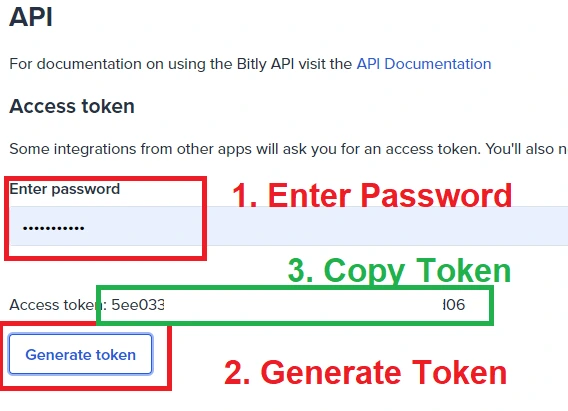
3. Enter your **account password**, press **Generate Token**, copy the token, and add it to Affiliaters.